Day 9: Make Your Phone Boring
Welcome to Day 9 of the Phone Breakup Challenge.
We’ve already eliminated many of our notifications interruptions and deleted some problem apps. (You did delete them, right? If not, try it! Remember you can always check them from a computer or web browser.)
Now it’s time to make some additional changes that will help us further transform our phones from temptations into tools.
The goal? To make your phone as boring as possible.
Here’s how to do so:
Redesign your home screen so that it contains only tools, not temptations. For example, Google Maps and your banking app may stay. Instagram and the news may not.
Speaking of problematic apps, redelete any that have snuck back onto your phone (if you must, you could hide them in a folder, but ideally, keep them off your phone entirely and check from a computer or browser.) If you’re freaking out, just try it through the weekend and see what happens. :)
Adjust your settings to make it easy to toggle between color and black and white. (Do an internet search for instructions, because it’s hard to explain – on iPhones, this option is called “color filters” and is hidden at the bottom of the accessibility settings.) If you set it up correctly, you’ll be able to toggle between black and white and color simply by hitting the side button of your phone three times. This is important because bright colors are very difficult for our brains to ignore and resist – keeping your phone on black and white as often as possible will make it MUCH less tempting. Don’t believe me? Check out my phone.
A Brief Tour of My Phone
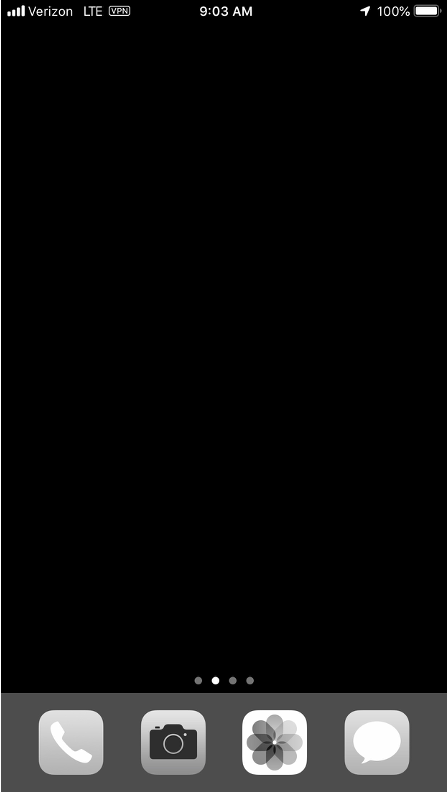
Over the years, I’ve experimented with many ways to make my phone boring. Here’s what it looks like today:
• I try to keep it black and white as often as possible.
• I don't have a photo on my home or lock screen.
• I don’t have any apps on my home screen (other than the four in the menu bar, which are currently the phone, messages, photos and the camera).
• All of my other apps are stored and displayed in folders in my app library, which shows up on the second page.
• I access apps by searching for them. (And I turned off my phone’s assistant and the “show recently used” feature to reduce the chances of me opening apps on autopilot.)
• I don’t have email or the news on my phone (those were my biggest problem apps).
• My phone’s case covers its screen, so that I don’t see it light up when something new comes in. (But it also doesn’t light up much, because I have nearly all notifications turned off.)
Your New Phone
By the end of your redesign, you should be left with the phone equivalent of a toaster oven: excellent for its intended purposes, but otherwise extremely boring.
Please leave a comment sharing what you did – and how it’s making you feel.
To scrolling less and living more,
PS:
As always, you can ask me and your fellow participants questions—and share observations and insights with each other— by leaving a comment.
You can also send me questions privately simply by responding to your daily email, but I encourage you to engage with the community; you may be surprised to discover that other people are struggling with the same thing!
If you leave a comment on the blog, please be sure to check back — I read through every comment, and try to respond to each one! (And other people often chime in, too.)
How to Leave a Comment/Join the Conversation
If you want to start a new thread/conversation, simply type your comment into the big white comment box below.
If you’re trying to respond to a previous commenter, or add a comment to a thread, simply tap the small “reply” circle on the top right of the post (if you’re on a computer, you may need to hover your mouse over the comment to get the “reply” option to show up) and reply in the thread. This will help keep our conversations organized.
You do not need to log in or create an account in order to comment. Simply enter your first name, ignore the other fields, and then submit the comment as a guest.
Catherine will be popping in once a day to read through and respond to your comments. You may also hear from other members of the team, Maryana and Laura, who are helping with logistics.